Claude's new Google Workspace add-on streamlines teachers' workflows by assisting with tasks in Docs, Slides, and Sheets, elevating classroom efficiency.
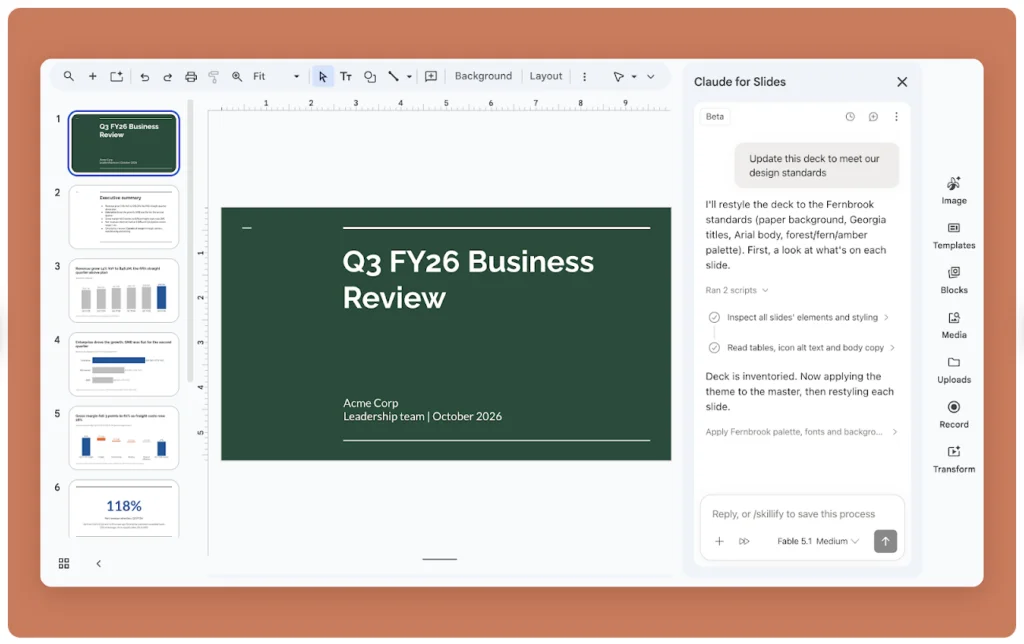
Understanding Claude for Google Workspace
Claude for Google Workspace is a newly released add-on from Anthropic that integrates AI capabilities into Google’s suite of tools. The tool provides assistance directly within Google Docs, Slides, and Sheets, allowing educators to draft, edit, and analyze content effortlessly.
Available in beta, the add-on consolidates operations for educators into one installation that covers all applications. However, it requires a paid subscription to one of Claude's plans—Pro, Max, Team, or Enterprise—and its use depends on the configuration of your institution’s Google Workspace domain.
Capabilities Across Google Workspace Applications
Claude enhances productivity by supporting various functions across Google Docs, Slides, and Sheets. Its capabilities include drafting and rewriting text, designing organized slides, and writing complex spreadsheet formulas. Here's how educators can make the most of it:
| Application | Claude's Assistance | Examples for Educators |
|---|---|---|
| Google Docs | Drafting, revising, summarizing, and restructuring text | Lesson plans, assignment instructions, and parent communications |
| Google Slides | Creating slides, revising content, and maintaining consistent design | Presentations, discussion prompts, and workshop materials |
| Google Sheets | Formulas, data organization, and analysis | Assessment results, budgets, and planning trackers |
Using Claude Effectively in Google Docs
The integration of Claude into Google Docs allows teachers to transform raw notes into well-structured documents. Here are key applications:
1. Craft Lesson Plans
Start with your existing notes, including objectives and activities. Claude can format and organize them into a structured lesson plan. For instance, you might prompt: "Organize these notes into a comprehensive lesson plan, including objectives, materials, teaching sequence, and an assessment strategy."
2. Simplify Instructions
Claude can help streamline complex instructions, making them easier for students to comprehend. A possible prompt is: "Revise these assignment instructions for Grade 7, ensuring clarity and conciseness while highlighting potential misunderstandings."
3. Create Reading Support Materials
Teachers can employ Claude to derive glossaries or guiding questions from the reading materials they choose. For example: "Generate a glossary of key terms and corresponding questions based on this reading passage."
4. Construct and Review Rubrics
By providing assessment criteria, Claude can help draft or improve existing rubrics, ensuring clarity and observability. A helpful prompt might be: "Review this rubric and suggest clearer descriptors for each assessment level."
5. Edit Family Communications
Claude aids in creating clear updates for families, ensuring important information is highlighted. An example request could be: "Revise this newsletter, keeping the friendly tone and making actions clear and visible at the start."
Leveraging Claude in Google Slides
In Google Slides, educators can tap into Claude’s capabilities for producing polished presentations. Here’s how:
1. Draft a Presentation from an Outline
Claude can generate initial slides from a provided outline. For instance: "Create a presentation based on this outline for Grade 8, ensuring active involvement of students."
2. Streamline Content
Ask Claude to distill slides by focusing on main ideas, thus making presentations more digestible. You could say: "Condense these slides to emphasize one main idea each, while retaining essential terminology."
3. Integrate Checkpoints for Understanding
Utilizing the content, Claude can generate questions throughout the presentation. A prompt could be: "Add questions after each major concept to check understanding and encourage discussion of misconceptions."
4. Provide Worked Examples
Claude assists in laying out clear, step-by-step examples for complex processes. You might request: "Include slides that demonstrate comparing historical sources through step-by-step reasoning."
5. Ensure Consistency in Styling
By analyzing the entire deck, Claude can ensure design elements and headings are consistent throughout. Try: "Standardize the heading formats and design elements across the slides."
Applying Claude in Google Sheets
In Google Sheets, Claude can write and debug formulas, analyze datasets, and more. Here are some effective uses:
1. Formulas and Explanations
To create complex calculations, provide clear descriptions of needs. An example request is: "Write a formula to calculate averages while explaining its function."
2. Error Troubleshooting
If a formula isn't working, ask Claude to identify and fix the issue, such as: "Identify the error in this formula and suggest corrections."
3. Analyze Assessment Trends
Claude can reveal patterns in assessment data, helping inform instruction. Prompt it with: "Summarize the performance patterns from this assessment data."
4. Clean Up Resource Lists
Claude is also useful in organizing resource lists by removing duplicates and standardizing formats. You could ask: "Clean this resource list by removing duplicates and standardizing labels."
5. Create Planning and Budget Tools
Educators can describe the necessary elements, and Claude can build budgeting tools. For example: "Create a classroom budget tracker with specified categories and calculations."
Getting Started with Claude
To integrate Claude, visit the Google Workspace Marketplace and install the add-on. Launch it in any Google application by navigating to Extensions → Claude → Open Claude and signing into your Claude account. If you encounter installation issues, you may need approval from your institution’s administrator.
Begin by assigning Claude a manageable task, whether it's revising instructions or clarifying a formula. Always ensure to validate the AI’s outputs, particularly concerning factual accuracy and alignment with your curricular goals. Keep in mind that AI should enhance your expertise, not replace it.
For additional resources, the full Claude in Google Workspace Guide is available for download.


Discussion
Sign in to join the discussion.